
Register your phone number
Texting things in is the whole reason BrainSack has a phone number. Before it will work, your own mobile has to be registered against your account — which takes a tick box and a code we text you.
Last updated 25 August 2026. Stuck on something this does not cover: [email protected].
Before you start
- An active BrainSack subscription — the Phone page sits behind the paywall, so a trial or a paid account is needed to reach it.
- The handset itself, in your hand. The number is confirmed with a code we text to it, so it cannot be added from somewhere else.
- A mobile number that can receive SMS. Landlines and most VoIP numbers cannot, and will fail at the code step.
Steps
Open the Phone page
Sign in, then pick Phone from the rail down the left of the board. On a narrow screen the rail is behind the menu button at the top of the page.
The page has three sections. Texting in at the top holds the BrainSack number you text things *to* — it leads because it is what you came to copy into your contacts. Your number beneath it is the one thing here that needs anything from you. Test a message at the foot is what you use once the other two are done.
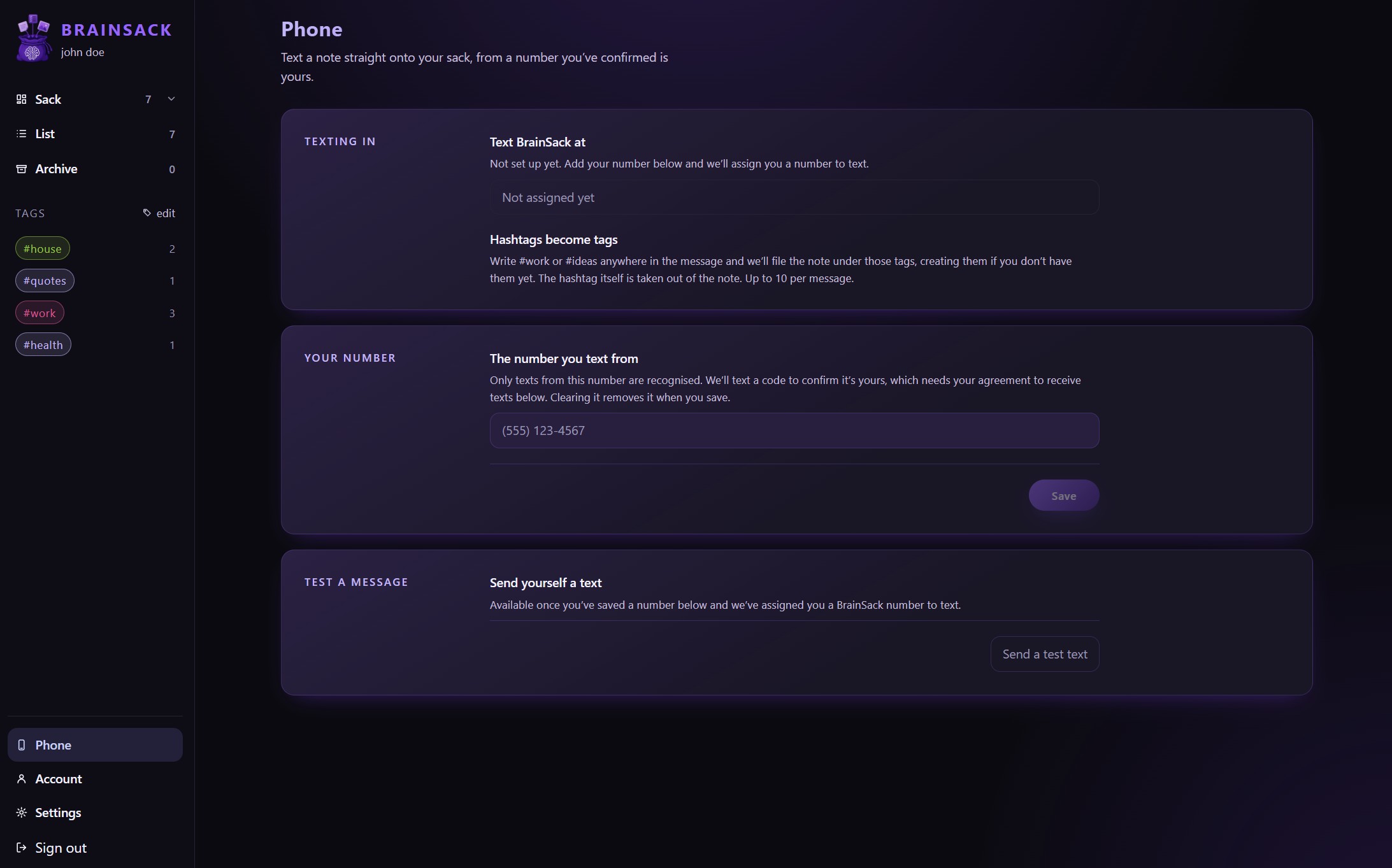
The Phone page. Your own numbers are the top section; everything below it follows from them. Type your mobile number
In the Your number section there is a single box, labelled *The number you text from*. Type your mobile into it. It formats itself as you type, and spaces, dashes and brackets are all fine — BrainSack stores it in international form whatever you type.
A bare ten-digit number is read as a US or Canadian one. Anywhere else, lead with your country code and a
+.There is one box, not a list. An account texts in from one number, so adding a second is not something to look for — changing the number in this box is how you move to a different handset.
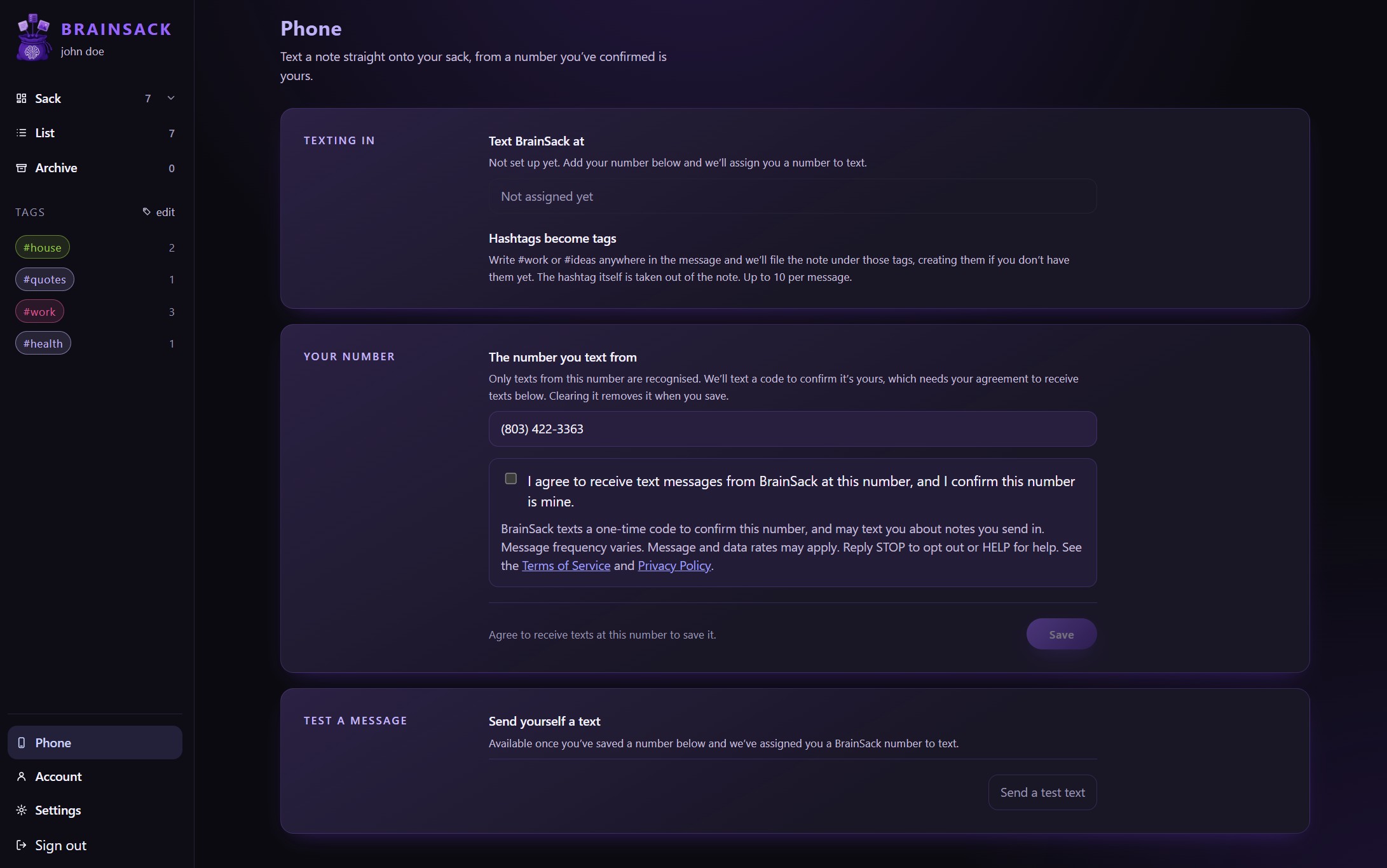
Any format will do. It is stored in international form regardless of how it was typed. Tick the consent box
A tick box appears underneath the number, and only while a number is being claimed — clearing the box is a removal, which proves nothing and is never asked to agree to anything. It starts unticked every single time — including on a number you are only correcting a typo in — and Save stays disabled until it is ticked. That is deliberate: the tick is the thing a carrier asks us to be able to show, so it can never be left over from last time.
What you are agreeing to is: I agree to receive text messages from BrainSack at this number, and I confirm this number is mine. The small print beneath it covers message frequency, that your carrier rates may apply, and that STOP and HELP work.
We keep the date and the exact wording against the number, rather than a link to a page that can be edited later.
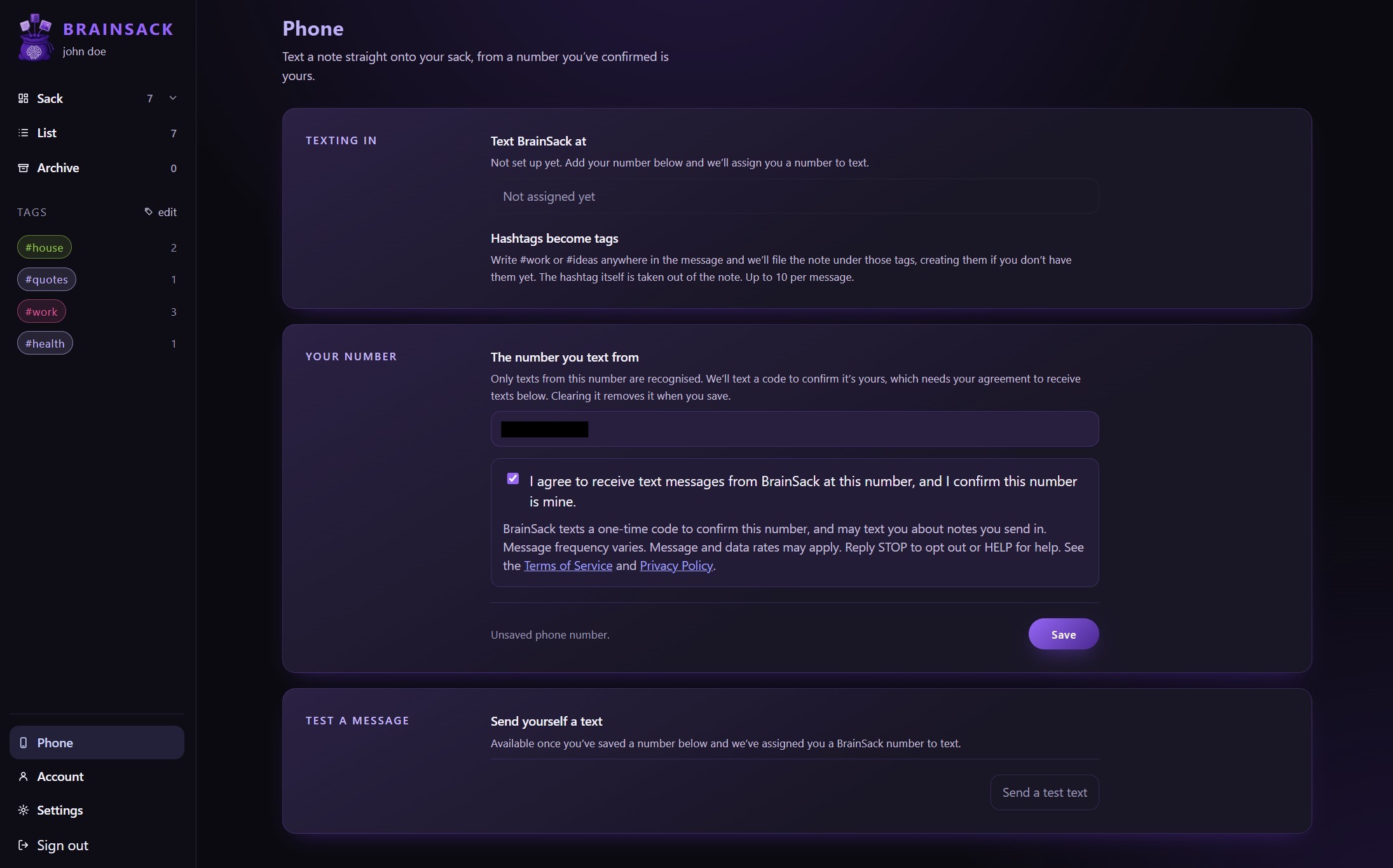
The box is unticked on every save, and Save will not proceed without it. Press Save, and wait for the code
Press Save at the foot of the Your number section. That is what sends the code — nothing is stored yet, and the line beside the button changes to say it is waiting on one. Within a few seconds a six-digit code arrives by text.
It will not come from your BrainSack number. Confirmation codes are sent by our messaging provider from a number of its own, so do not go looking in the thread you text your notes into. There will not be one yet.
Enter the code
A box appears directly under the number, headed *Enter the code we texted to* and the number it went to. Type the six digits in and press Confirm — or just press Enter, which does the same thing.
Two other buttons sit beside it. Send a new code texts a fresh one, which is the way out of a code that expired or never arrived. Cancel abandons the save entirely.
The number box and the tick box are both locked while a code is in flight, so what you are confirming cannot change underneath you. Cancelling snaps the box back to what is stored — nothing has been written, so nothing is left half-done.
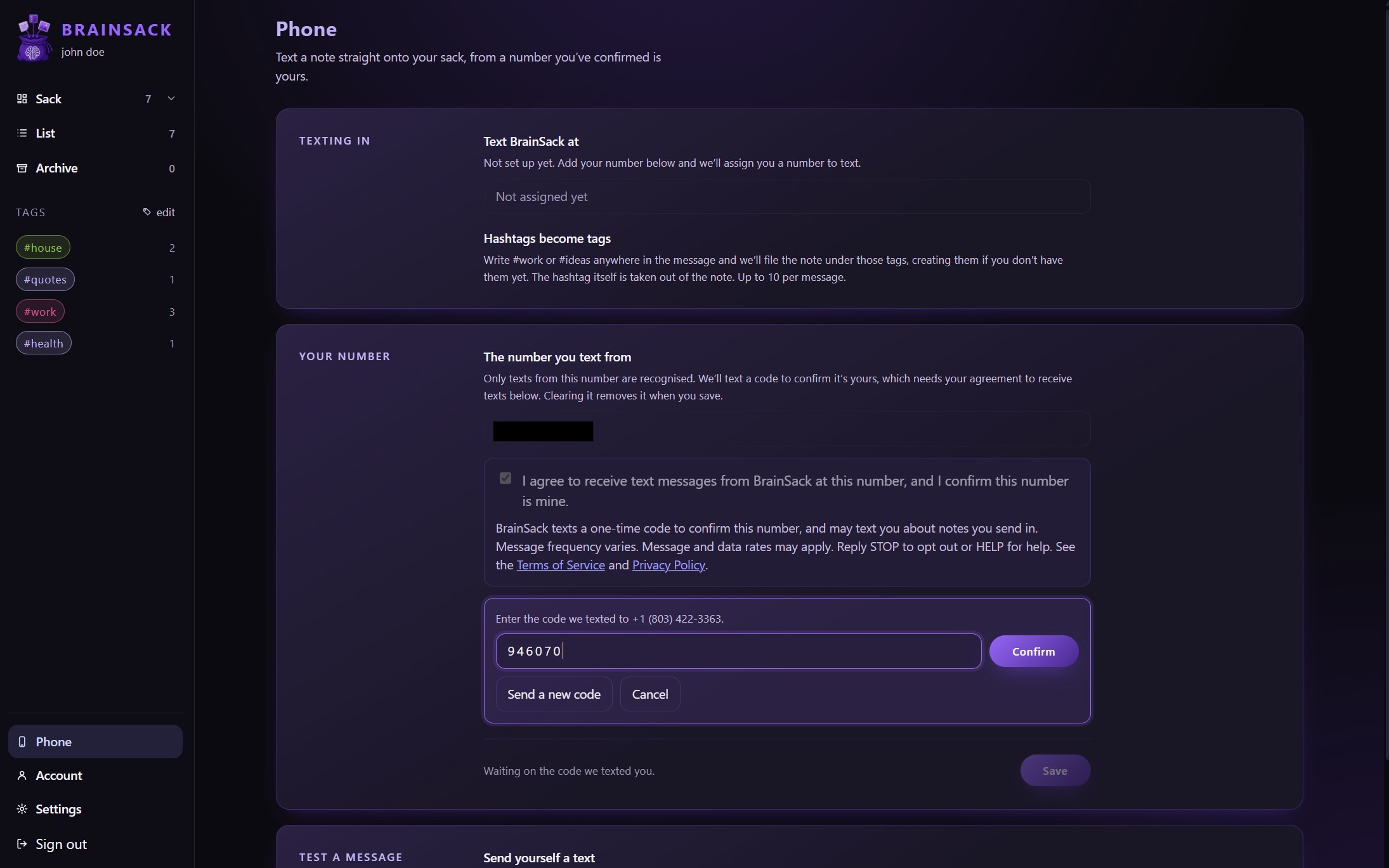
One code at a time, in a box under the row it belongs to. Check it landed
The line beside Save reads Phone number saved., the tick box is gone, and in its place is a sentence naming the date you agreed: *You agreed to receive texts at this number on…*, with a reminder that STOP opts you out.
Scroll back up. Texting in now shows a number under *Text BrainSack at*, where it said “Not assigned yet” before. That is the one you text your notes to, and it is yours for as long as the account has a number on it. Put it in your contacts.
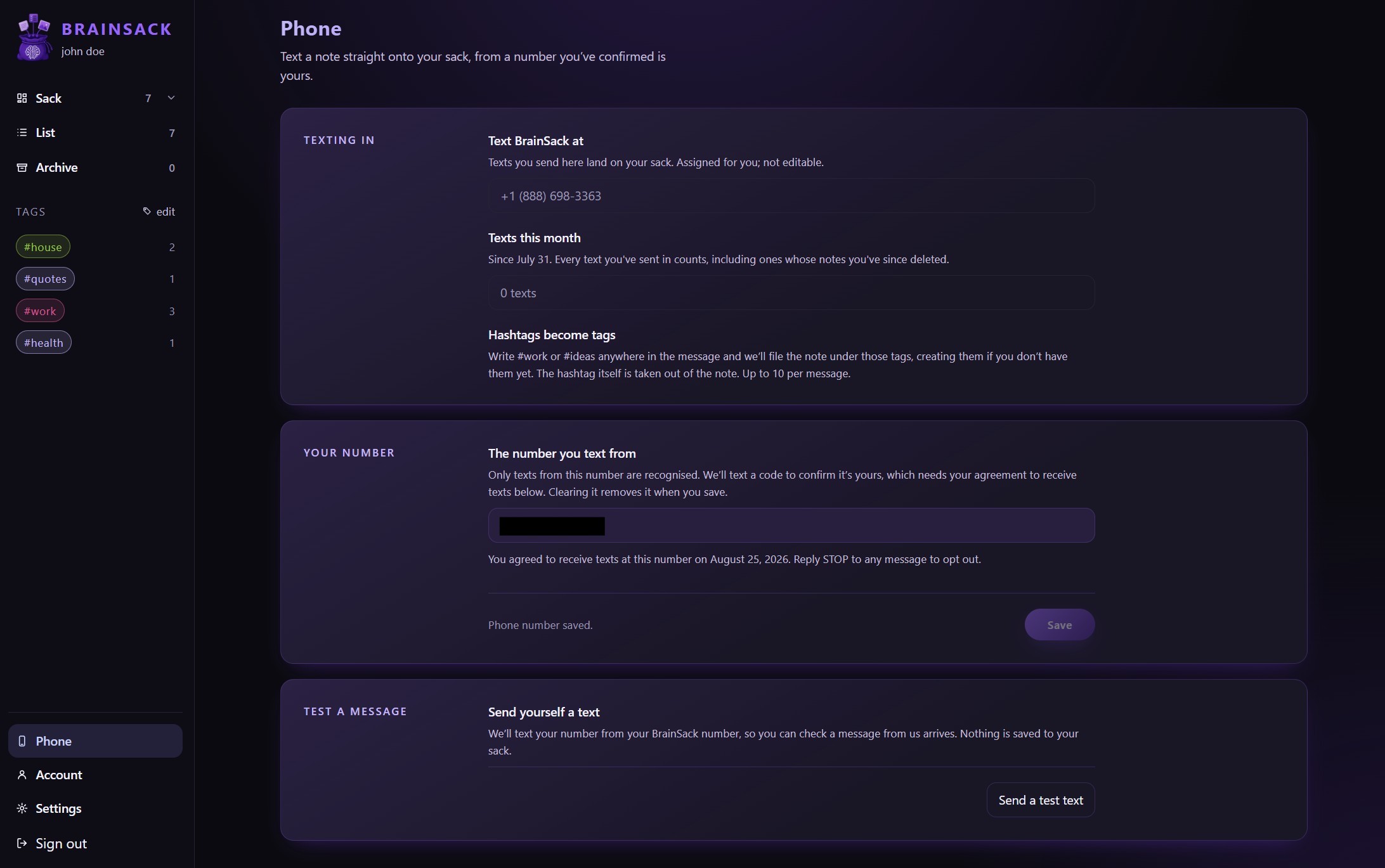
A registered number, with the date of the agreement beside it and the BrainSack number to text underneath.
What happens next
- Text anything to the BrainSack number and it lands on your board as a note within seconds.
- Any
#wordin the message becomes a tag, and is taken out of the note itself so it does not read twice. - The Test a message button at the foot of the Phone page sends one the other way, which is how you check your carrier is letting our messages through.
If something goes wrong
Each row is what you see on screen. Symptoms are worded the way the app words them, so the sentence in front of you should be findable on this page.
- The code never arrived
- Give it a minute, then send a new one. Check the messages from unknown senders, and remember it comes from our provider number rather than your BrainSack number. If two attempts produce nothing, the number is most likely a landline or a VoIP line that cannot receive SMS.
- BrainSack says the code has expired
- Codes are short-lived on purpose. Use the button to send a new one rather than re-typing the old code — an expired code stays wrong however carefully it is entered.
- BrainSack says the code is not right
- Check you are reading the newest text — asking for a second code makes the first one useless, and the two sit next to each other in the thread.
- It says there have been too many attempts
- Our provider caps how many times one number can be guessed at. Leave it for a few minutes, then start again with a fresh code.
- It refuses to send another code
- There is a cap of a handful of codes per quarter of an hour on each account. Wait it out — the message tells you roughly how long — and check the number is right before spending the next one.
- It says the number belongs to another account
- A mobile number can only be registered to one BrainSack account at a time. Remove it from the other account first, or email us if that account is not one you can get into.
- It asks you to agree before it will send anything
- The consent box has not been ticked. It resets on every save, so a box that was ticked a moment ago for a different number does not count for this one.
- The number saved, but Texting in still says “Not assigned yet”
- Your number is safely registered — the part that assigns you a BrainSack number to text has not completed. Nothing you can do from this page fixes it, so email us and we will sort it out.
- You texted STOP and now nothing works
- STOP removes that number from your account, which is what it is meant to do. Adding the number again is the way back, and it collects a fresh agreement. Your board and everything on it were never affected.
Next
- Text a note in — Send a text to your BrainSack number and it lands on the board as a note. What arrives, what does not, and why there is no reply.
- Hashtags become tags — Write #work in a text or a dump and the note is filed under that tag. The exact rules, and what is deliberately not a hashtag.
- Change or remove your number — New handset, new number, or done with texting altogether. Changing re-verifies; removing takes the BrainSack number with it.
- Stop texts by texting STOP — Reply STOP to opt out. What it removes, what it leaves alone, and how to start again afterwards.
Still stuck? Email [email protected] and tell us what the screen said. All the help articles are at Help.